This is the exact baseline setup I use when securing a Microsoft Entra tenant.
I’m covering only three things here:
Disabling Security Defaults
Enforcing MFA using Conditional Access
Verifying the setup using sign-in logs
Nothing extra. No geo-blocking. No advanced Zero Trust — just doing MFA the right way.
Before I Start (Important)
Before touching Conditional Access, I always make sure of this:
Entra ID P1 or P2 is available
I’m signed in as a Global Administrator
A break-glass account exists
Strong password
Excluded from Conditional Access
MFA not enforced
I’ve seen too many lockouts caused by skipping this step.
I never proceed without a break-glass account.
Step 1: I Disable Security Defaults
Security Defaults and Conditional Access don’t work together.
If I want control, Security Defaults has to go.
What I Do
Sign in to the Microsoft Entra admin center
Go to:
Identity → Overview → Properties
Click Manage security defaults
Set Enable security defaults = No
Click Save
Screenshot
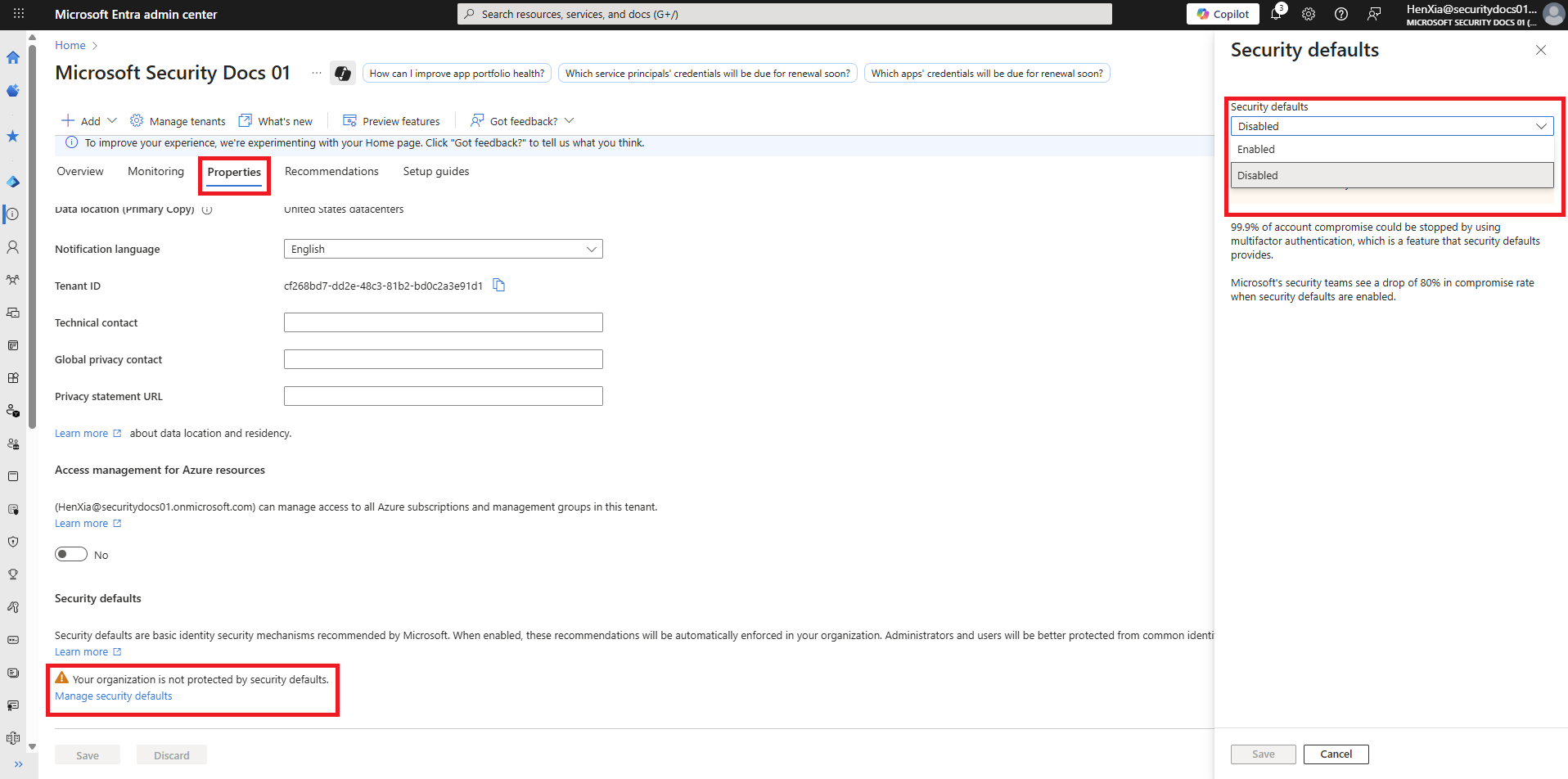
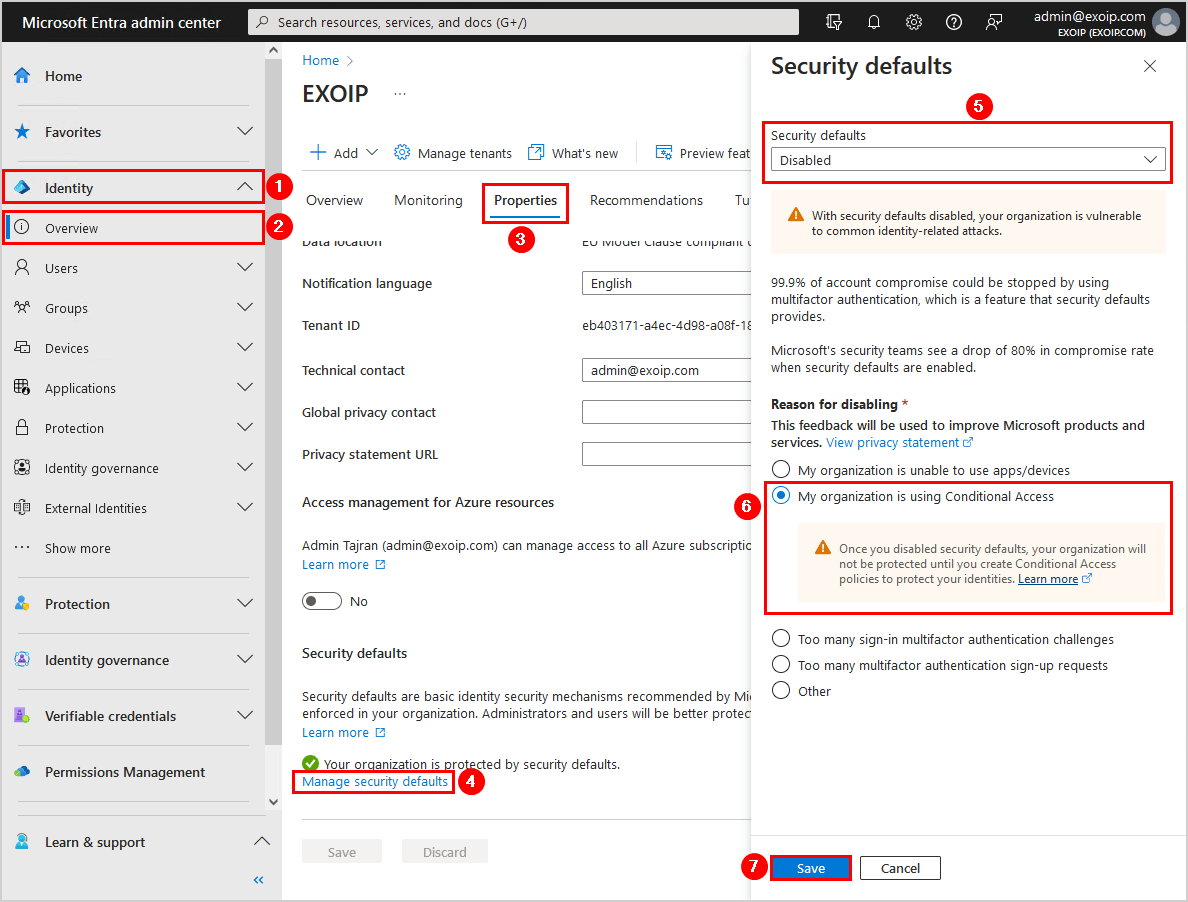
What this shows:
Security Defaults turned off so Conditional Access can take over.
Step 2: I Create a Conditional Access Policy to Require MFA
This is where MFA should actually be enforced — not through Security Defaults.
What I Do
Go to:
Protection → Conditional Access → Policies
Click + New policy
- Policy Details I Use
- Policy name - CA - Require MFA for All Users
Assignments
Users
Include: All users
Exclude:
Break-glass account(s)
Service accounts (if any)
I always double-check exclusions before moving on.
Target resources
Include: All cloud apps
Access Controls
Grant
Select Require multi-factor authentication
Choose Require one of the selected controls
Policy State
I set this to Report-only first
Then I click Create
I never turn a new policy on immediately.
Screenshot
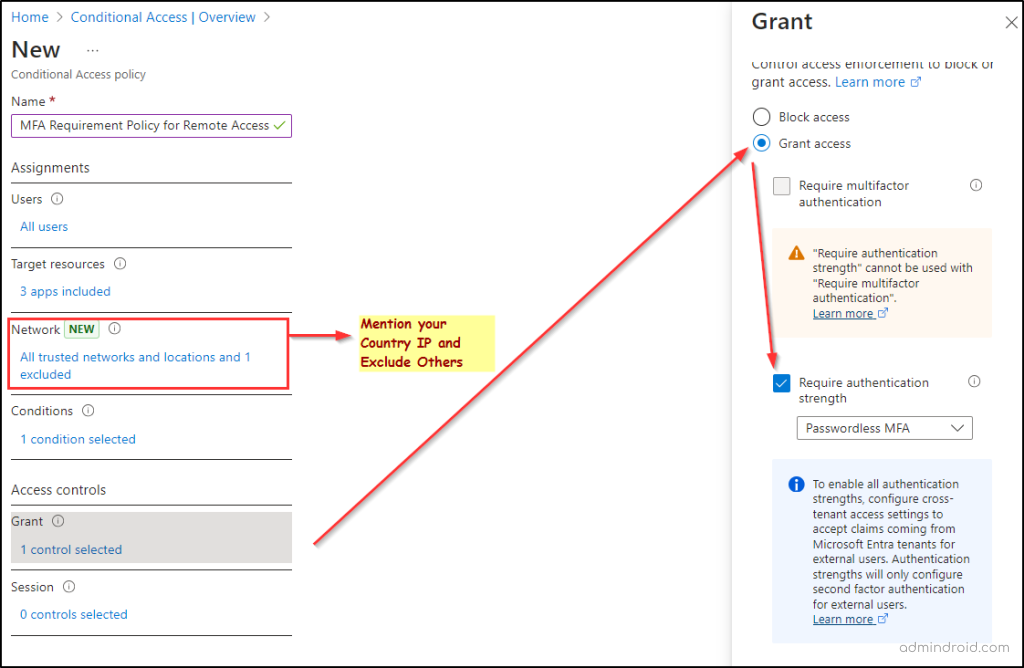
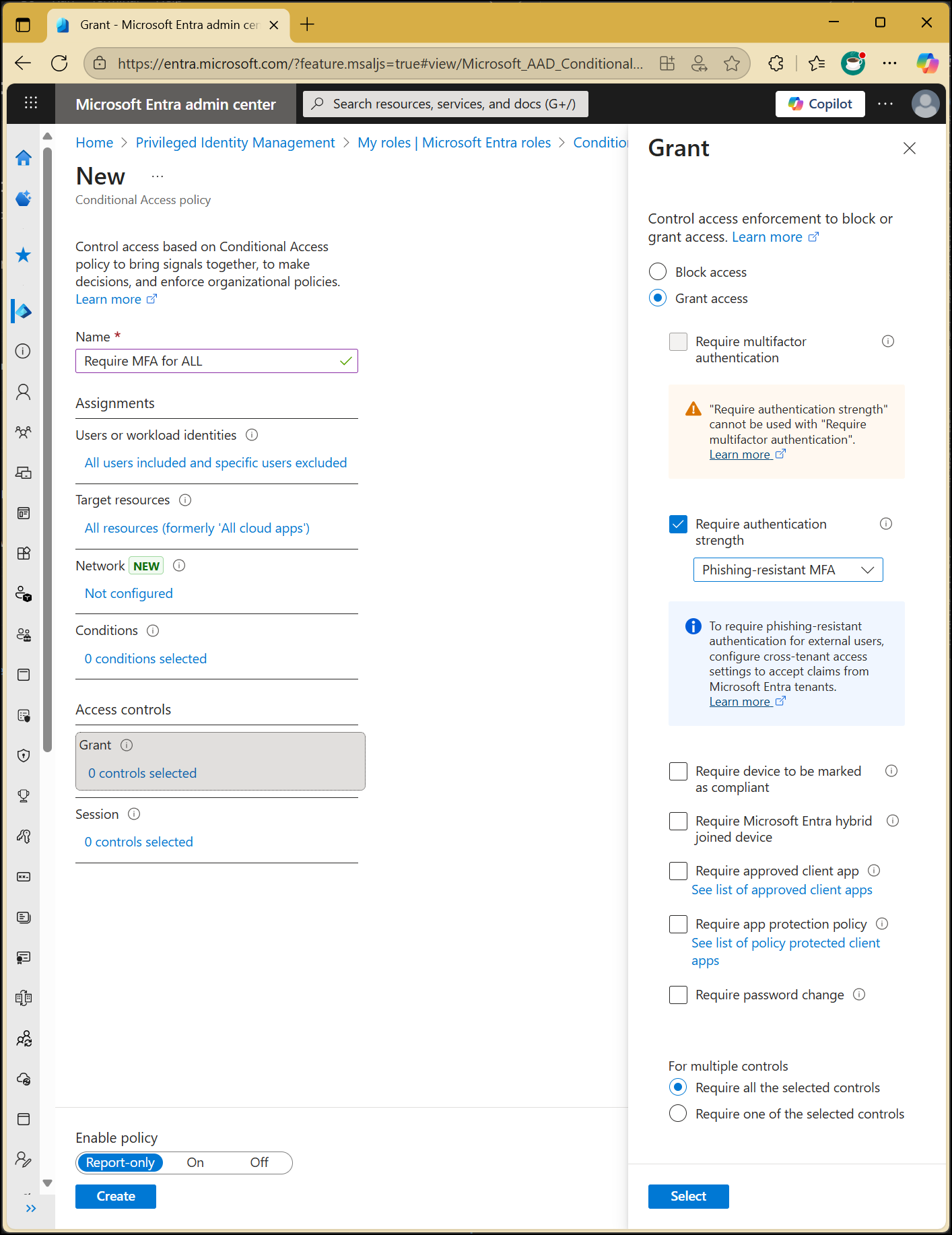

What this shows:
MFA enforced using Conditional Access — the right way.
Step 3: I Verify Everything Using Sign-In Logs
Before enabling anything, I confirm how the policy behaves.
What I Check
Go to:
Monitoring → Sign-in logs
Open a recent sign-in
Check the Conditional Access tab
I confirm:
MFA is required
Policy result shows Report-only: Success
This step catches mistakes before users are impacted.
Screenshot

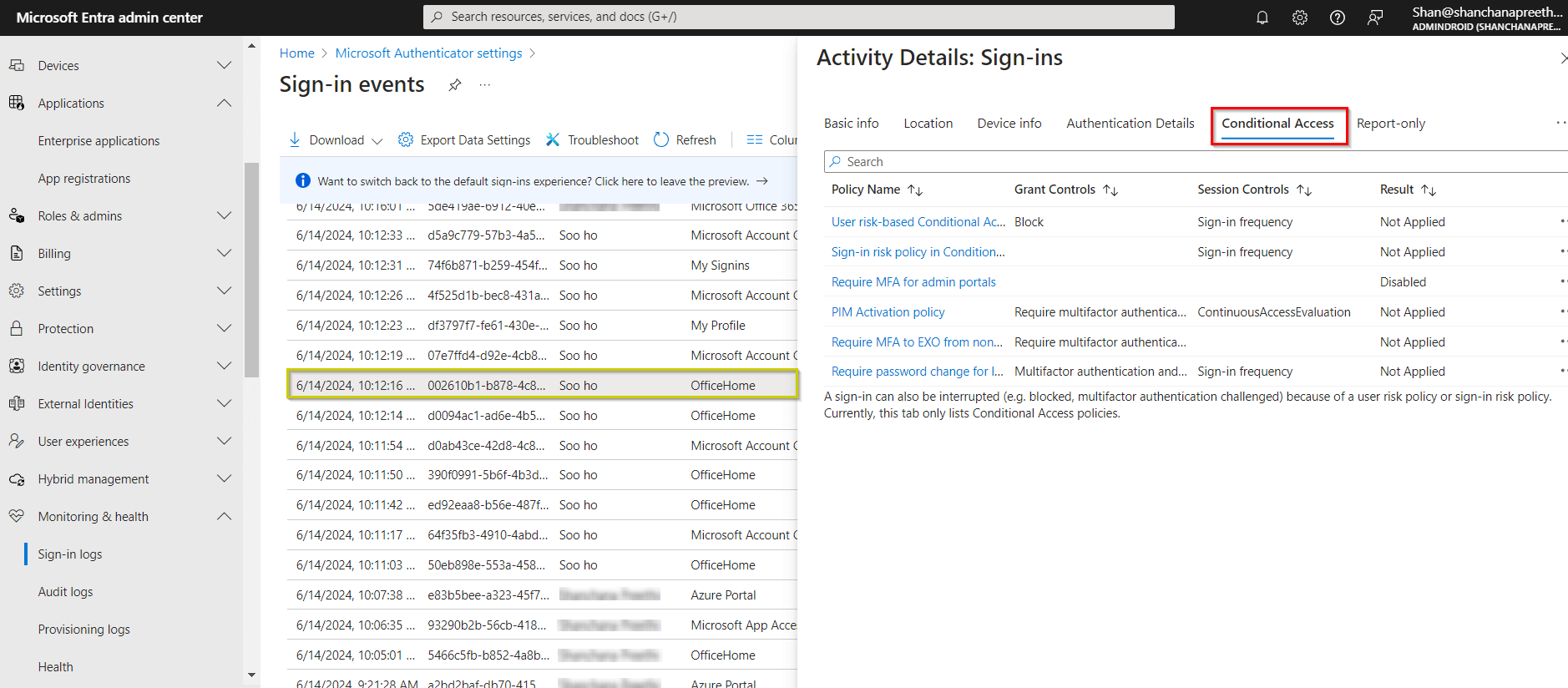
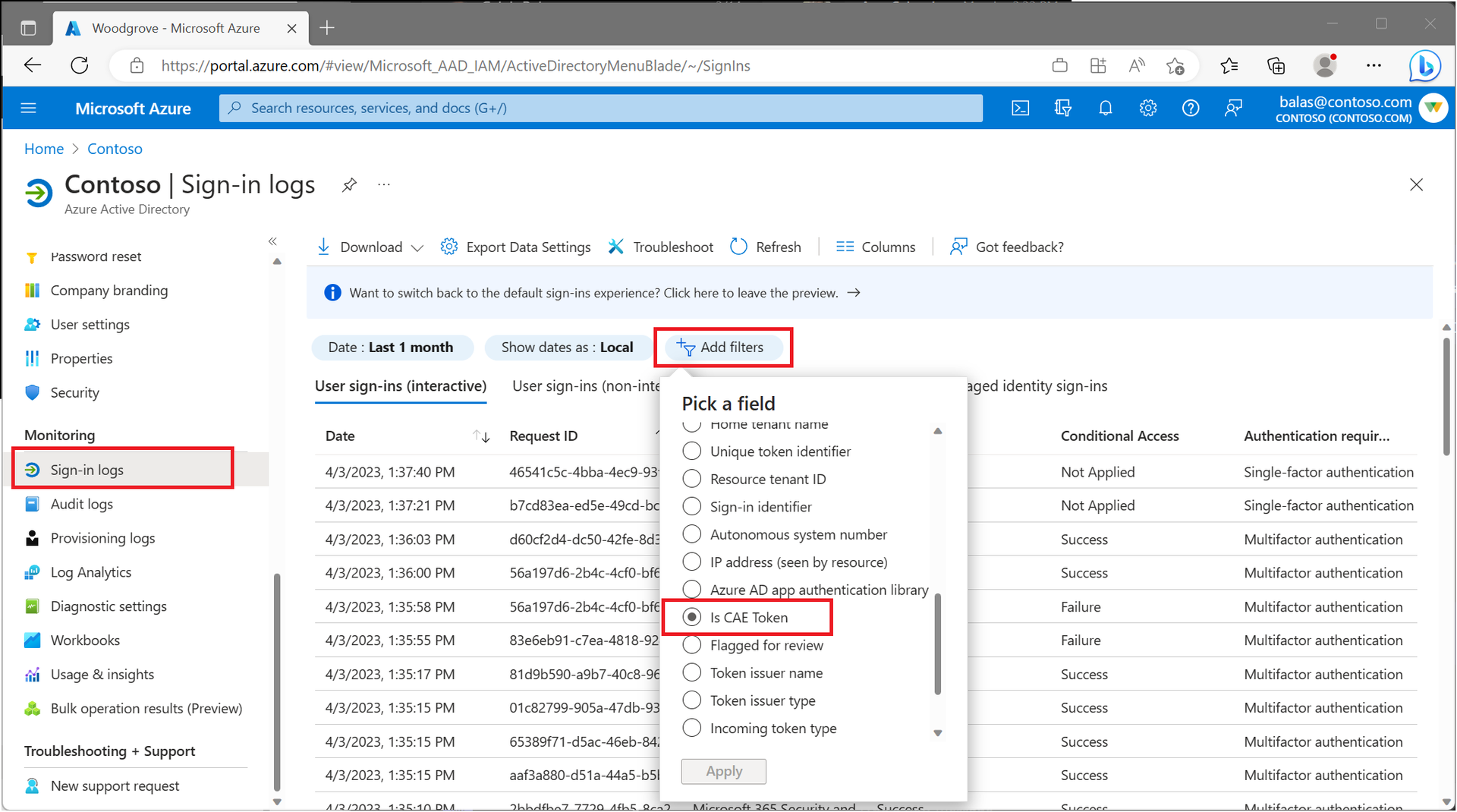
What this shows:
MFA requirement being evaluated correctly.
Step 4: I Turn the Policy ON
Once I’m satisfied with the sign-in logs, I enable the policy.
What I Do
Open the MFA Conditional Access policy
Change Enable policy from:
Report-only → On
Save the policy
Screenshot
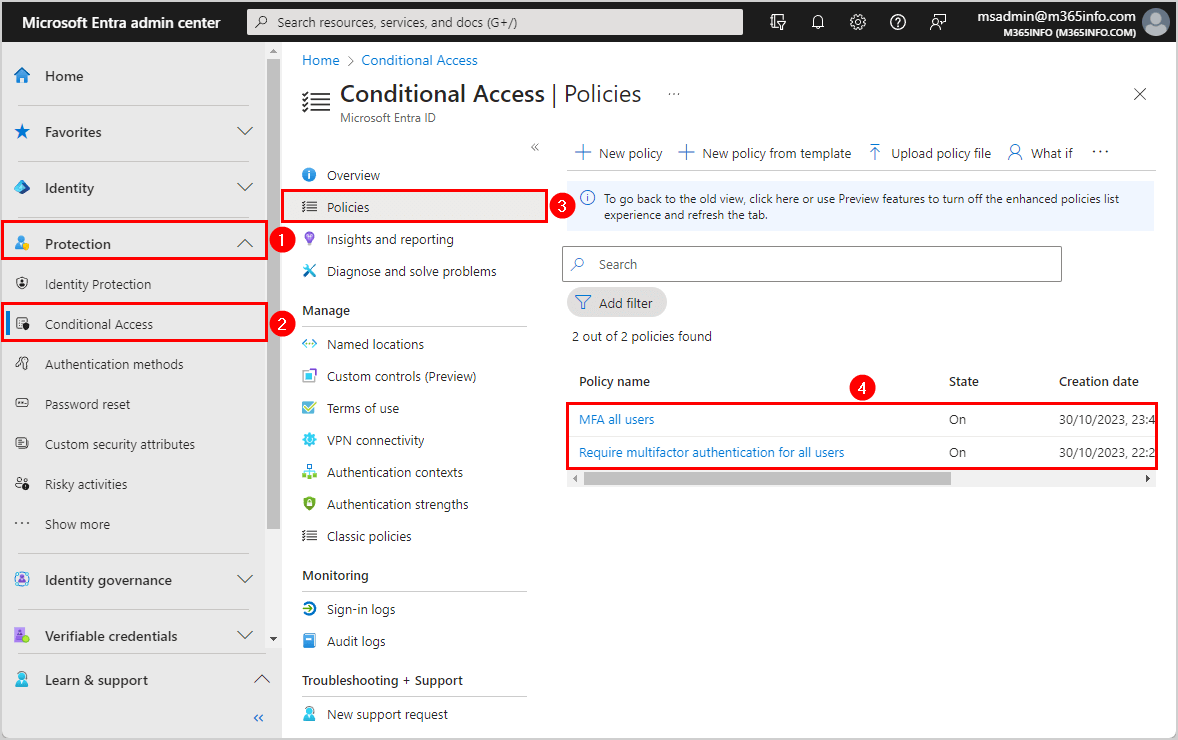
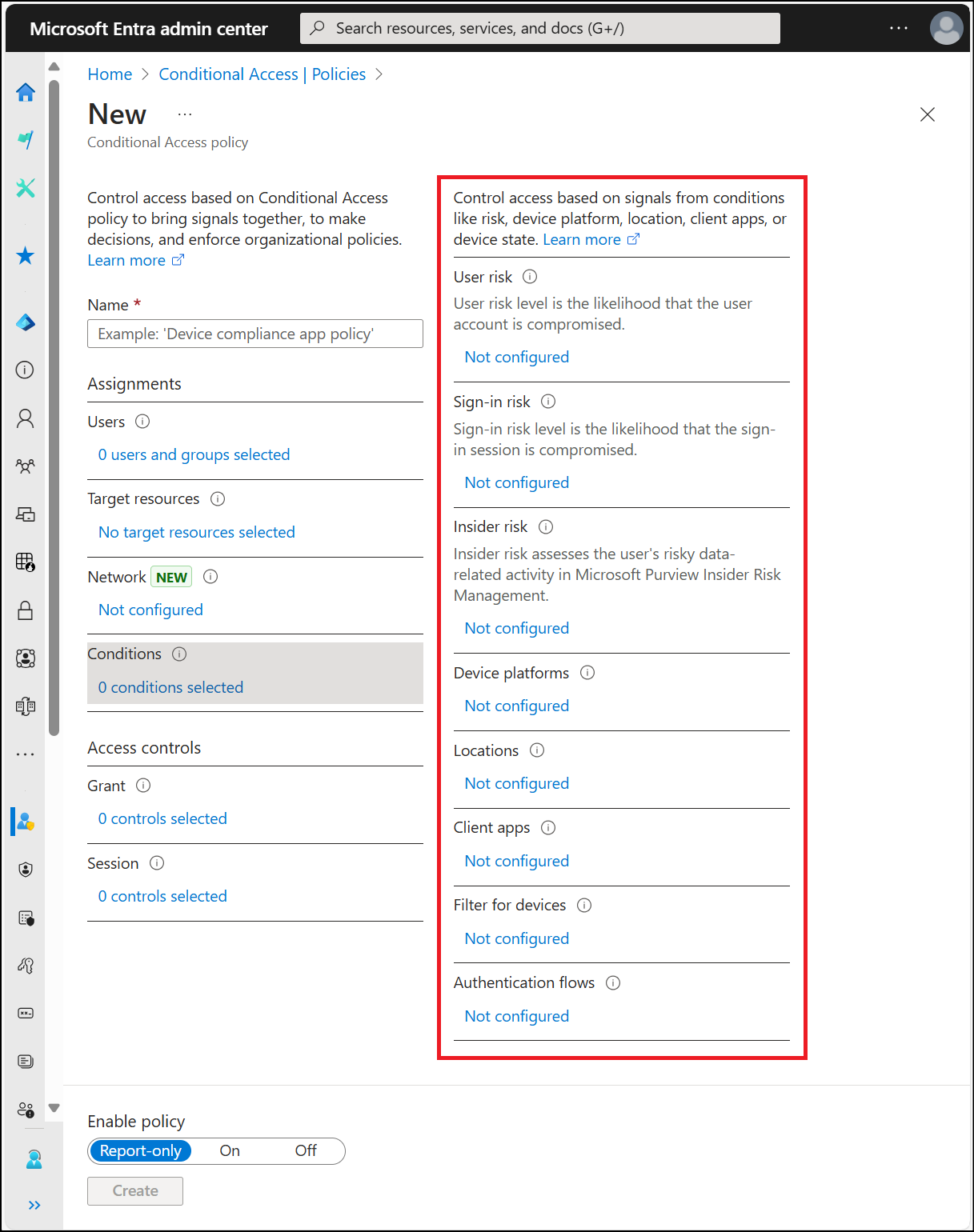
What this shows:
MFA policy enabled after proper validation.
End Result
At this point:
Security Defaults are disabled
MFA is enforced using Conditional Access
All users are protected (except excluded accounts)
MFA enforcement is auditable and predictable
This is the baseline I trust before adding more advanced controls.
Mistakes I Still See (and Avoid)
Enabling MFA without a break-glass account
Turning policies on without Report-only testing
Forgetting service accounts
Relying on Security Defaults long-term
None of these are complex mistakes — but they cause real outages.
Final Thoughts
Security Defaults are fine when you’re starting out.
But if you manage tenants seriously, Conditional Access is how MFA should be enforced.
This setup isn’t fancy — it’s reliable, and that’s why I use it.